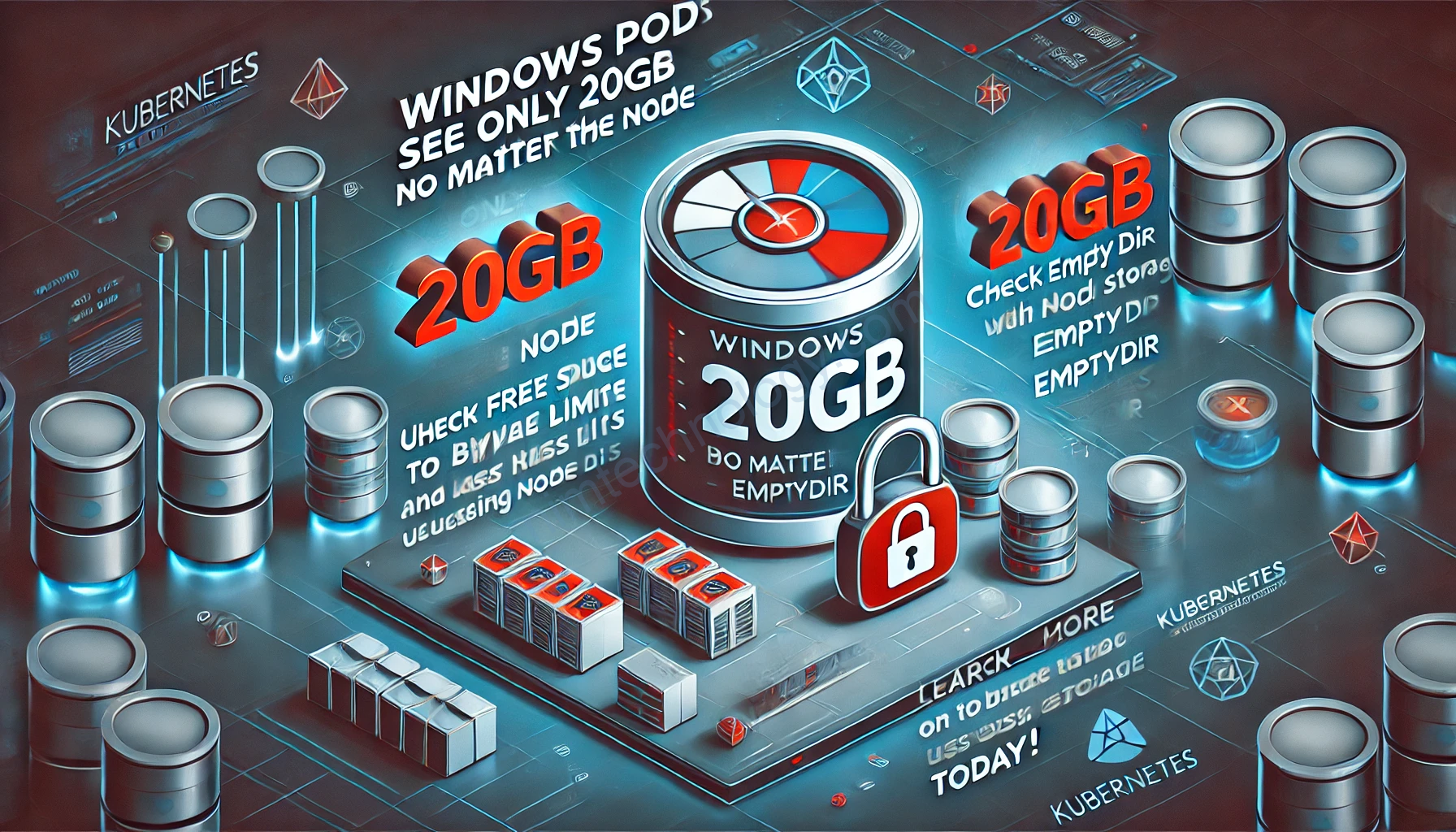
Nguyên nhân khiến pod Windows của bạn báo cáo kích thước ổ đĩa nhỏ (thường là 20GB) bất kể kích thước ổ đĩa thực tế của nút—là do cách Windows xử lý hệ thống tệp vùng chứa
The Key Difference
| Feature | Linux Pods | Windows Pods |
|---|---|---|
| Root Filesystem | OverlayFS (Shared) | Virtual Disk (Isolated) |
| Disk Visibility | Usually sees the Node’s full disk (unless limits are set). | Sees a virtual limit (Sandbox) set by the runtime. |
| Default Size | Size of the underlying Node disk. | 20GB (Default hard limit per container). |
| Why? | Files are stored as “diff” layers on the host filesystem. | The container gets a virtual block device (.vhdx or similar) on the host. |
Why it happens
Trên Linux, các container chia sẻ host’s filesystem trực tiếp qua overlay2. Nếu node của bạn có 100GB, thì container sẽ thấy 100GB.
Trên Windows, mỗi container được cấp phát một scratch space (khoảng không cục bộ) (sandbox) hoạt động như một đĩa ảo riêng biệt. Mặc định, Microsoft giới hạn điều này ở 20GB. Để ngăn một container làm đầy node. Ngay cả khi node EKS của bạn có ổ đĩa 500GB, pod Windows của bạn sẽ chỉ thấy C: là 20GB.
How to fix it (Increase Windows Pod Disk)
Bạn không thể “resize” ổ đĩa C: của một container Windows đang chạy một cách động, nhưng bạn có hai lựa chọn chính để có thêm dung lượng:
Use emptyDir (Recommended)
Nếu bạn cần một temporary scratch space (e.g., for logs, builds, or processing), không ghi vào C:\. Thay vào đó, gắn một emptyDir volume. Điều này bỏ qua giới hạn gốc 20GB và sử dụng dung lượng thực tế khả dụng của node.storage.
apiVersion: v1
kind: Pod
metadata:
  name: windows-pod
spec:
  containers:
  - name: windows-container
    image: mcr.microsoft.com/windows/servercore:ltsc2019
    volumeMounts:
    - mountPath: C:\data
      name: scratch-volume
  volumes:
  - name: scratch-volume
    emptyDir: {}
Result: C:\data sẽ có kích thước bằng dung lượng đĩa trống của Node, trong khi C:\ giữ lại 20GB.
Dưới đây là 3 cách để viết emptyDir
1. Add a Size Limit (Best Practice)
Đây là phương án thay thế phổ biến nhất. Nó định nghĩa kích thước tối đa cho volume, giúp ngăn một pod duy nhất lấp đầy toàn bộ ổ đĩa Node.
  volumes:
  - name: scratch-volume
    emptyDir:
      sizeLimit: 50Gi
2. Only use emptyDir
volumes:
  - name: scratch-volume
    emptyDir: {}
3. Use RAM (Memory) instead of Disk
Nếu dữ liệu tạm thời của bạn nhỏ và cần rất nhanh, bạn có thể sử dụng RAM của node. Lưu ý: Điều này tính vào memory limit của container của bạn.
  volumes:
  - name: scratch-volume
    emptyDir:
      medium: "Memory"
Comparison
| Syntax | Meaning | Limit |
|---|---|---|
emptyDir: {} | Default disk storage | Limit is Node capacity |
emptyDir:sizeLimit: 50Gi | Disk storage | 50GB (Pod evicted if exceeded) |
emptyDir:medium: "Memory" | RAM disk | Limit is 50% of RAM (by default) |
Check Free Space Inside the Pod
A. Check Free Space
sử dụng fsutil, công cụ hoạt động hoàn hảo cho các thư mục đã mount để xem không gian node cơ bản.
fsutil volume diskfree C:\data
Expected Output:
Bạn sẽ thấy toàn bộ dung lượng của Node ở đây, chứ không phải giới hạn 20GB.
Total # of free bytes        : 85899345920  (80 GB)
Total # of bytes             : 107374182400 (100 GB)
Total # of avail free bytes  : 85899345920
Nếu bạn chạy fsutil volume diskfree C:\, bạn có thể vẫn thấy giới hạn ~20GB.
Write a Large Test File
Try to write a dummy file larger than 20GB (or at least larger than the free space on C:) to C:\data.
# Create a 25GB test file in the emptyDir
fsutil file createnew C:\data\large-test.dat 26843545600
- If it succeeds: You have successfully bypassed the container size limit.
- If it fails: You are still writing to the container layer (check your
mountPath).
Understanding Insight
It will not immediately take 20GB of your Node.
The 20GB (or whatever the default limit is) is a Thin Provisioned limit (Quota), not a pre-allocated reservation.
How it works (Math for your 100GB Node)
If you have a 100GB node and you start 1 Windows Pod with a default 20GB limit:
- Immediate Usage: The pod only consumes the size of its Base Image (read-only, shared) + a tiny amount of metadata for the scratch space (a few MBs).
- Example: If your base image is 5GB, the node uses ~5GB.
- Remaining Space on Node: ~95GB.
- Growth: As your application writes data to
C:\, the scratch file grows dynamically.- If your app writes 1GB of logs, the node now has ~94GB free.
- If your app writes 10GB of temp files, the node now has ~85GB free.
- The Limit: If your app tries to write 21GB of data, the container will crash or get an “Out of Disk Space” error, because it hit its virtual 20GB limit.
- However, the Node still had space (roughly 75GB free), but the container was not allowed to use it.
Summary Table
| State | Container Sees (Inside) | Node Sees (Outside) |
|---|---|---|
| Pod Just Started | C: has ~20GB Free | Node used ~5GB (Base Image) |
| Pod Writes 2GB | C: has ~18GB Free | Node used ~7GB (Base + 2GB) |
| Pod Writes 25GB | Error: Disk Full | Node still has ~70GB Free (Unused) |